Smart Shift Official Guide
What is Smart Shift?
Smart Shift is Walbum™'s intelligent switching feature that automatically displays the most relevant watch face and widget content on your Apple Watch and iPhone based on time, behavior, and context.
Why Do You Need Smart Shift?
We focus on different information at different times of the day:
- Morning: Weather forecast, sleep quality
- Work hours: Stress level, hydration/standing reminders
- Lunch & after work: Steps and fitness progress
- Before bed: Tomorrow's weather forecast
However, Apple Watch can only display a limited number of widgets, and traditional widgets can only show one fixed type of information. Manually switching between them is tedious and easy to forget.
Smart Shift automatically switches widgets based on your daily routine, displaying the most relevant information at the right time—weather, HRV, or exercise progress—making your watch always "just right" without any manual effort.
Community
How to Use Smart Shift?
- Download Walbum from the App Store
- Go to the "Widget+" Tab
- Tap "Get Started" - Grant location & health permissions
- Add to your devices
- Add to Apple Watch
- Add to Home Screen widgets
- Add to Lock Screen widgets
Scene Details
Today Weather
See today's weather and tomorrow's forecast first thing in the morning.
- Trigger time: Wake-up time → Work start time (rest days → 10:00 AM)
- Display content: Today's weather + temperature range on the left; tomorrow's forecast on the right (members see air quality instead)
- Data source: WeatherKit (requires location permission)
Sleep Summary
Check how well you slept last night, first thing every morning.
- Trigger time: Wake-up time → Work start time (rest days → 10:00 AM)
- Trigger condition: Wore watch while sleeping, or morning HRV data available
- Ratings:
- 💎 Perfect Sleep (≥ 85)
- ⭐ Good Sleep (70–84)
- 🌙 Needs Improvement (< 70)
- Display content: Sleep rating + total duration (deep sleep duration)
- Data source: HealthKit sleep stage data
Work Highlight 🆕
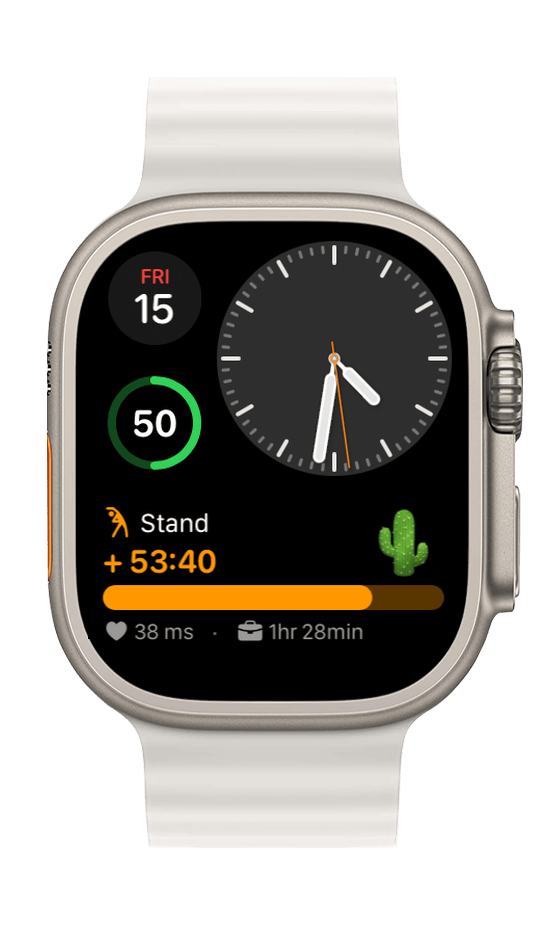
One card during work hours that smartly switches between stress, focus, and countdown — always showing what matters most.
The three things you care about during work — HRV stress level, focus/break timer, and time until lunch or off-work — used to be scattered across three separate widgets. Now they're consolidated into a single card that picks the hero automatically by priority:
Priority chain (top to bottom, first match wins):
- Lunch / Off-work countdown — Within 30min of lunch or 1h of off-work
- Stressed alert — Fresh HRV sample < 30
- Time to break (Reminding) — Focused continuously ≥ 30 minutes
- Energized — Fresh HRV sample > 50
- Focusing — Focus timer running
- Resting — 5-minute break countdown
- HRV Normal — Fallback, shows current HRV value
Card layout (3 rows):
- Title row: state name + hero value (e.g., "Stretch +12:30", "HRV 72 ms")
- Indicator:
- Focus / countdown: linear progress bar
- HRV: 3-segment gradient indicator (pink/lavender/green for Stressed/Normal/Energized), white dot marks current position
- Sub-info: the other two non-hero data points shown as small text separated by "·"
HRV "show once" rule: Extreme HRV (Stressed/Energized) only acts as hero within 30 minutes of sample collection; after that it falls back to the sub-info row, so a single morning HRV reading doesn't dominate the entire workday card.
Interactive buttons on iPhone home screen: iOS 17+ lets you tap Break / Refocus directly from the home-screen widget — no need to open the app.
The previous "Focus Break", "Last HRV", and "Off Work Countdown" scenes have been merged into this card during work hours. HRV on non-work hours is now handled by Fitness Highlight.
Fitness Highlight 🆕
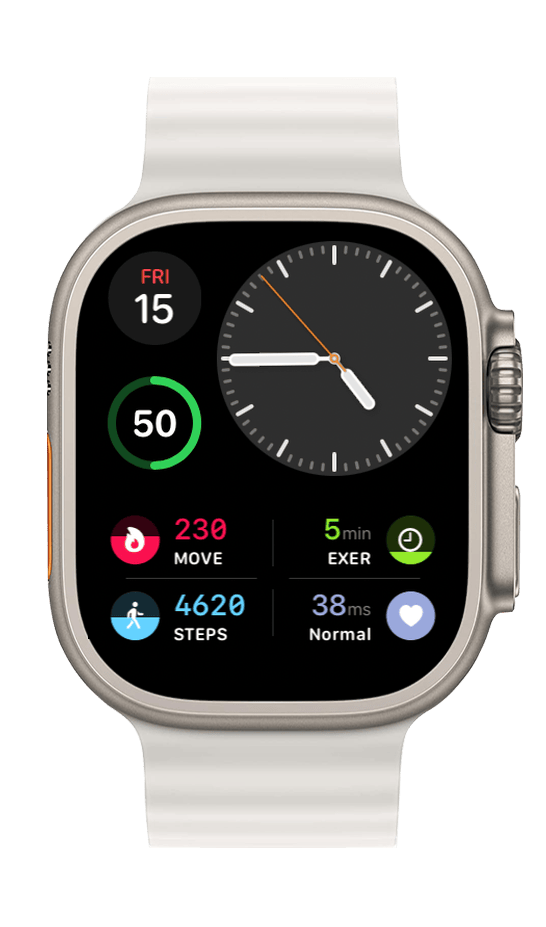
One card on non-work slots covering all four key health metrics: active calories, exercise minutes, steps, and HRV.
During lunch, after work, and rest-day daytime, you used to wait through three separate cards — Steps Progress, Activity Dual, and HRV — rotating every 30 minutes, with the one you cared about most often off-screen. V2 consolidates them into a single 2×2 grid card with all four metrics visible at once, clockwise from top-left:
- Top-left · Active Calories (MOVE): red, with progress ring
- Top-right · Exercise Minutes (EXER): green, with progress ring
- Bottom-right · HRV: color shifts with state (pink / lavender / green)
- Bottom-left · Steps (STEPS): cyan blue, with progress ring
Goal completion rules (shared by MOVE / EXER / STEPS): Below 100%, the icon's background circle fills from the bottom like a water gauge — the closer to goal, the fuller. Once you hit the goal, the icon swaps to a ✓ checkmark (color preserved). Exceed the goal, and a multiplier prefixes the label, e.g. 2×STEPS means you doubled your daily target.
HRV three-color: The HRV cell has no ring — just a solid colored circle indicating state. Pink for Stressed (< 30, elevated stress), lavender for Normal (30–50, baseline), green for Energized (> 50, fresh and recovered).
Active slots: lunch break, after work, and rest-day daytime (10:00 → 21:00).
Since V2, the lunch / after-work / rest-day daytime slots no longer show "Steps Progress", "Activity Dual", or "Last HRV" independently — they're folded into this card. The originals are preserved in the archive below for reference.
Milestone
Automatically celebrate your special moments—100 days together, 1000 days, and more.
- Trigger condition: Anniversary reaches round numbers (100 / 200 / 365 / 500 / 1000...)
- Display content: Large number + anniversary name
- Requires configuring anniversary in settings
New Record
Get a surprise celebration when you set a new steps or HRV record.
- Trigger condition: Today's steps / HRV exceeds all-time high
- Display content: Celebration style + new record value
- Automatically tracks your historical records
City Steps Ranking
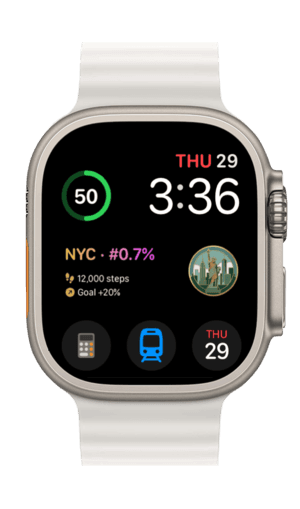
After 9 PM, see how your daily steps rank in your city.
- Trigger time: 9:00 PM → Midnight
- Display content: City name + percentile ranking (e.g., "NYC · Top 9.3%") + city landmark icon
- Trophy levels:
- 💎 Legendary: Top 5%
- 🥇 Gold: Top 10%
- 🥈 Silver: Top 15%
- 🥉 Bronze: Top 20%
- Data source: HealthKit steps + location city
Forecast Weather
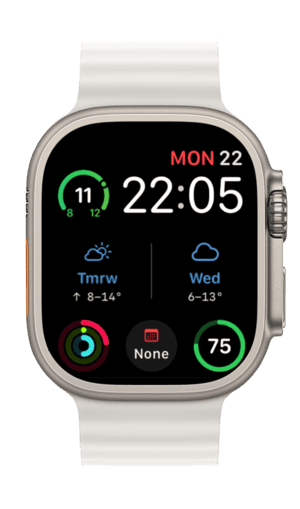
Check tomorrow's weather before bed to prepare for the next day.
- Trigger time: 9:00 PM → Midnight
- Display content: Tomorrow's weather overview
- Data source: WeatherKit
The scenes below have been folded into Work Highlight or Fitness Highlight in V2 and no longer appear independently in their primary time slots. Kept here for reference for users on older versions.
Off Work Countdown — Countdown progress bar for the run-up to lunch / off-work.
- Trigger time: 1 hour before off-work → off-work; 30 minutes before lunch → lunch
- Display content: Remaining time with progress bar
- Since V2, surfaces as the P0 (highest priority) item inside the workHighlight card
Steps Progress — Visualize your daily step completion percentage.
- Trigger time: Lunch break, after work
- Display content: Steps progress bar + current steps / goal
- Data source: HealthKit
Activity Dual — Calories burned and exercise minutes side by side.
- Trigger time: Lunch break, after work
- Display content: Calories on the left, exercise minutes on the right
- Data source: HealthKit Activity Ring data
HRV Stress Status (Last HRV) — Read your stress level from heart rate variability.
- Trigger time: Rest days / non-work hours
- Display states: Energized (HRV > 50) / Normal (30–50) / Stressed (< 30)
- Data source: HealthKit HRV
- Note: Apple Watch collects HRV every 2–5 hours automatically
FAQ
How often does data refresh?
- Weather data: Once per day
- Health data: Follows system collection frequency (steps in real-time, HRV every 2-5 hours)
- Scene switching: Checked every 30 minutes
Can I customize which scenes appear?
Currently, Smart Shift automatically schedules scenes based on time periods and doesn't support manual selection. We plan to add more customization options in future updates.
What's New in V2
V2 reworks the information density of both work and non-work hours: one card now tells the whole story instead of rotating between several. Work hours fold three independent scenes into workHighlight, and non-work hours fold four into fitnessHighlight, so every glance lands on what matters right now.
Three-in-One Work Highlight (workHighlight)
Work hours used to rotate three separate cards — HRV stress, focus/break timer, and the countdown to lunch or off-work. Each was useful, but spread across three cards rotating every 30 minutes, the right one always seemed to show up a beat too late. V2 folds them into a single workHighlight card that picks the hero by priority — countdown takes over as lunch or end-of-day approaches, a sudden HRV drop nudges you to breathe, 30 minutes of nonstop focus reminds you to stretch. The other two stay on the sub-info row in small text; they're not gone, just no longer competing for attention. See Work Highlight for the full breakdown.
Four-in-One Fitness Highlight (fitnessHighlight)
Lunch, after work, and rest-day daytime — non-work slots used to require rotating between Steps Progress, Activity Dual, and HRV cards to see the day's health picture. V2 consolidates them into a single fitnessHighlight card with a 2×2 grid: active calories (MOVE) top-left, exercise minutes (EXER) top-right, steps (STEPS) bottom-left, HRV bottom-right. The first three each carry a progress ring and signature color — red, green, cyan — and once you hit goal, the icon swaps to a ✓ checkmark; overshoot, and the label gets a multiplier like 2×STEPS to celebrate the extra effort. HRV in the bottom-right uses three solid colors to signal Stressed / Normal / Energized at a glance. See Fitness Highlight for details.
Feedback & Support
- Instagram: @wfa_app
- Email: [email protected]