How to Use Apple Watch for Studying: Focus, Timers, Health & Exam Prep
If you already own an Apple Watch, it can be a useful study tool. But without the right settings, it can also become another screen that interrupts you.
The best way to use an Apple Watch for studying is not to install as many productivity apps as possible. Start with Apple's built-in Focus, notification controls, Timers, Reminders, Calendar, Activity, Sleep, and Mindfulness features. Then add tools such as the Exam Goal watch face and Smart Shift only when they solve a specific problem.
This approach works for university exams, graduate school applications, the GRE, LSAT, CPA and other certification exams, or any long study plan with a fixed deadline.
Quick answer: What can Apple Watch do for students?
Apple Watch cannot study for you or guarantee better grades. It is most useful for five practical jobs:
| Study problem | Built-in Apple Watch feature | What Walbum can add |
|---|---|---|
| Phone notifications keep breaking concentration | Focus and notification controls | Link the Exam Goal watch face to a Study Focus |
| Study and break periods have no clear rhythm | Timers | Smart Shift can surface focus, break, and schedule countdowns |
| Small tasks are easy to forget | Reminders, Calendar, and Siri | Keep your goal and time progress visible on the watch face |
| Long sitting sessions and poor sleep affect your routine | Activity rings, Stand reminders, and Sleep tracking | Bring steps, activity, and HRV into one glanceable view |
| A distant exam goal starts to feel abstract | Custom watch faces and complications | Show your target, exam date, preparation time, and time progress |
If you change only one setting, create a Study Focus first. The most important rule is simple: your watch should be quieter than your phone, not louder.
Step 1: Make Apple Watch less distracting
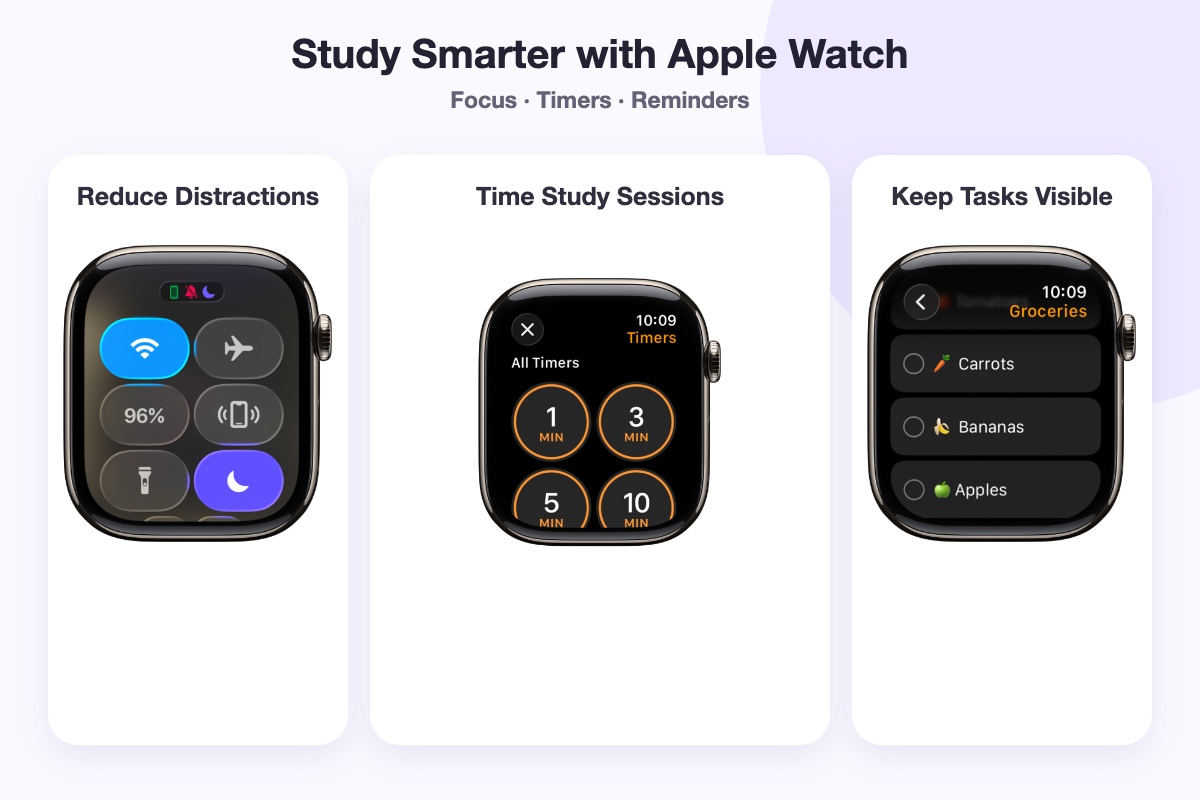
Create a Study Focus
Focus settings can sync between your iPhone and Apple Watch. You can decide which people and apps may notify you, schedule the Focus, and associate it with the screens and watch face you want to use while studying. See Apple's Use Focus on Apple Watch guide for current options.
A practical setup looks like this:
- On iPhone, open Settings → Focus and create a custom Focus named “Study” or “Exam Prep.”
- Allow only essential contacts, calls, Calendar, and the study apps you actually need.
- Silence social media, shopping, news, and nonessential group chats.
- Schedule the Focus for regular study hours, or turn it on when you reach the library.
- Choose the Apple Watch face you want to see during that Focus.
You can use a simple built-in face or the Exam Goal watch face described later. When Study Focus begins, the notification rules and watch face can change together: distractions recede while the information connected to your goal stays visible.
Trim Apple Watch notifications further
Focus is only the first layer. In the Watch app on iPhone, review Notifications and turn off anything that does not need an immediate response from your wrist.
Apple Watch also lets you mute some notifications for an hour or for the rest of the day. That is useful before a mock exam, reading block, or writing session. Apple's notification settings guide explains the available controls.
Use this test: If seeing a notification two hours later would make no difference, it probably does not need to tap your wrist.
Step 2: Put study timing and tasks on your wrist
Use the built-in Timers app for study sessions
The built-in Timers app can run multiple timers, and Siri can create one without opening your phone. For example: “Set a timer for 50 minutes.” See Apple's Timers guide.
Choose a rhythm that fits the work instead of forcing every subject into the same method:
- If you get distracted quickly, try 25 minutes of study and a 5-minute break.
- If you can settle into deeper work, try 50 minutes of study and a 10-minute break.
- For practice tests, use the real time limit for that exam section.
- For flashcards or review, set a shorter timer and check whether you completed the intended task when it ends.
Apple Watch does not include a built-in mode literally named “Pomodoro,” but Timers can handle a basic focus-and-break cycle. The main benefit is behavioral: you can start and check a timer without unlocking the phone that contains your most distracting apps.
Use Reminders for tasks and Calendar for time
Many study plans become confusing because “what I need to finish” and “when I need to do it” are mixed together.
- Reminders works well for finishable tasks such as “Review Chapter 3,” “Correct practice test 2,” or “Make flashcards for 20 new terms.” You can view and complete items on Apple Watch or capture a new task with Siri. See Apple's Reminders guide.
- Calendar works better for scheduled events such as classes, study groups, mock exams, application deadlines, and the exam itself. Apple Watch can show upcoming events at a glance. See Apple's Calendar guide.
Keep the daily list short. Three to five important tasks are easier to act on than a wrist-sized backlog of everything you might do.
Step 3: Manage your physical routine, not only your time
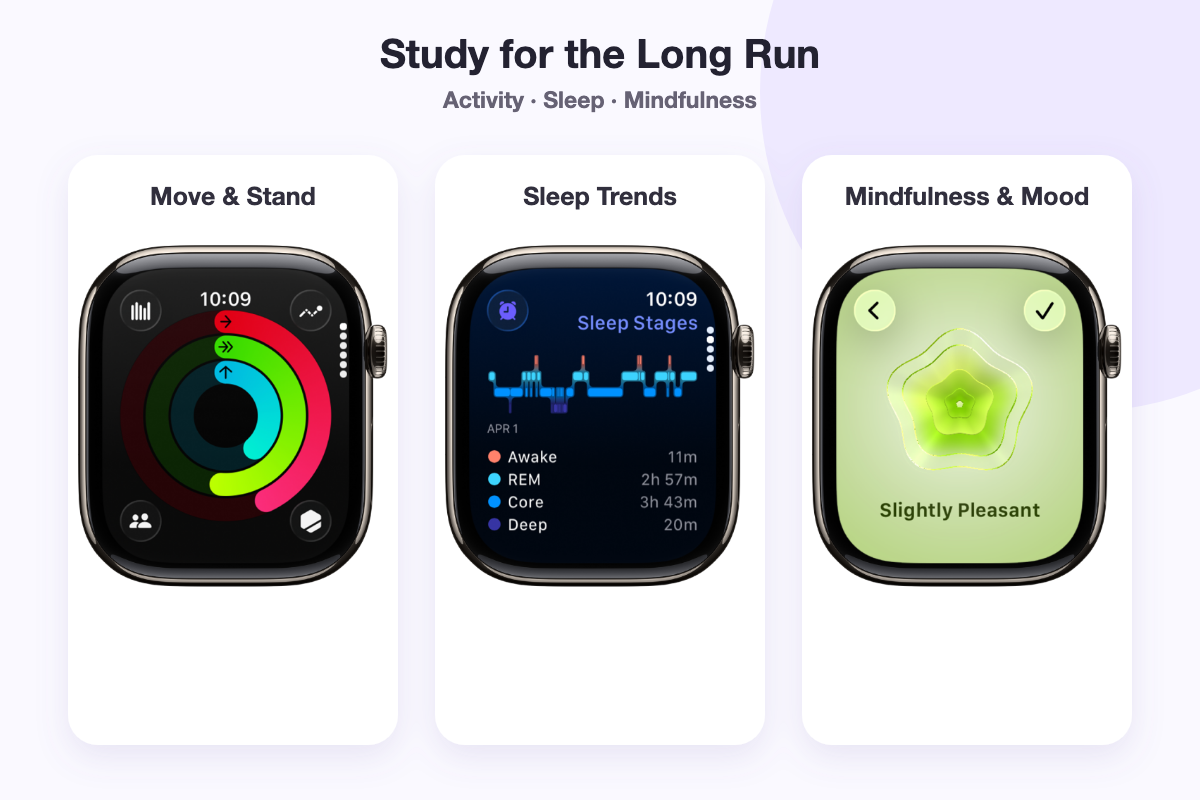
Exam preparation can last for months. A routine you can repeat is usually more valuable than one unusually long study day. Apple Watch health features can help you notice patterns and create gentle prompts, but they should not become another set of scores you feel required to maximize.
Activity rings, steps, and standing
Apple Watch tracks movement, exercise, standing, and steps. Apple's daily Activity guide explains what each ring represents.
For students, the most realistic uses are simple:
- Stand up for water, stretch, or walk briefly after a long sitting period.
- Take a short walk after lunch before starting the afternoon session.
- Schedule a few forms of movement each week that you can actually maintain.
- Do not trade sleep for the sake of closing a ring.
- Do not treat a missed goal as a failed day.
Use Sleep schedules and trends
The Sleep app can set a sleep goal and schedule. When you wear a supported Apple Watch to bed, it can estimate sleep duration and stages. See Apple's sleep tracking guide.
The useful question is not whether one night looked perfect. Look for a pattern: Are you repeatedly going to bed later? Has total sleep dropped? Does your morning concentration change when the pattern changes?
If you wear the watch overnight, plan a reliable charging time so sleep tracking does not leave you with an empty battery the next day.
How should students interpret Mindfulness and HRV?
The Mindfulness app offers short Reflect and Breathe sessions, and Apple Watch can record health data that includes heart rate variability (HRV). See Apple's Mindfulness guide, health features overview, and heart-rate measurement explanation.
One important limitation: HRV is not an “exam stress score.” A single value can be influenced by sleep, exercise, alcohol, illness, measurement timing, and individual baseline. It is more useful as a personal trend than as a diagnosis.
Apple Watch and Walbum do not replace medical advice. If you feel persistently unwell, talk to a qualified health professional instead of relying on a watch reading.
Step 4: Keep your exam goal visible with the Exam Goal watch face
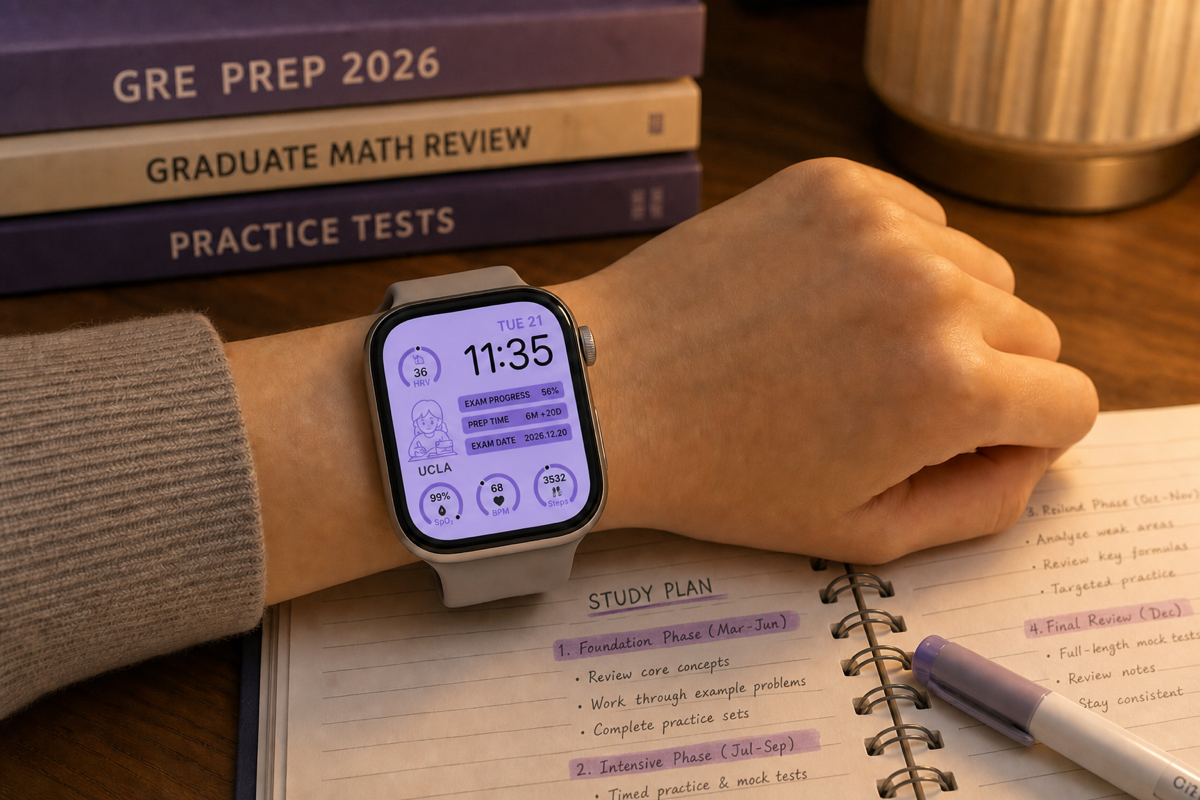
Calendar can tell you when the exam happens, but it does not remind you why you started every time you raise your wrist. That is the purpose of the Exam Goal watch face in Walbum.
After you enter a target, preparation start date, and exam date, the face can show:
- Target school or program: Keep the destination visible.
- Exam progress: Show how far the calendar has moved between your start and exam dates.
- Preparation time: Make the time you have already invested visible.
- Exam date: Keep the deadline easy to find.
- Character choice: Choose the visual style you prefer.
- Health and activity data: Depending on device, system version, region, and permissions, the face can also display data such as HRV, heart rate, blood oxygen, and steps.
The percentage is not a claim that you have mastered the same percentage of the syllabus. It represents elapsed time, not academic mastery. Use your practice scores, recall, completed topics, and error review to judge real learning progress.
How to install the Exam Goal watch face
- Download Walbum from the App Store on iPhone.
- Find the “Exam Goal” watch face in the app.
- Enter your target, preparation start date, and exam date, then choose a character.
- Follow the onscreen steps to add the face to Apple Watch.
- Open Walbum on Apple Watch to complete syncing and refresh the data.
If the face appears black, a complication is blank, or data does not refresh, see Walbum's installation and troubleshooting guide. System requirements can vary by watch face, so follow the compatibility notes shown in the app.
Step 5: Let Smart Shift surface focus, breaks, and health at the right time
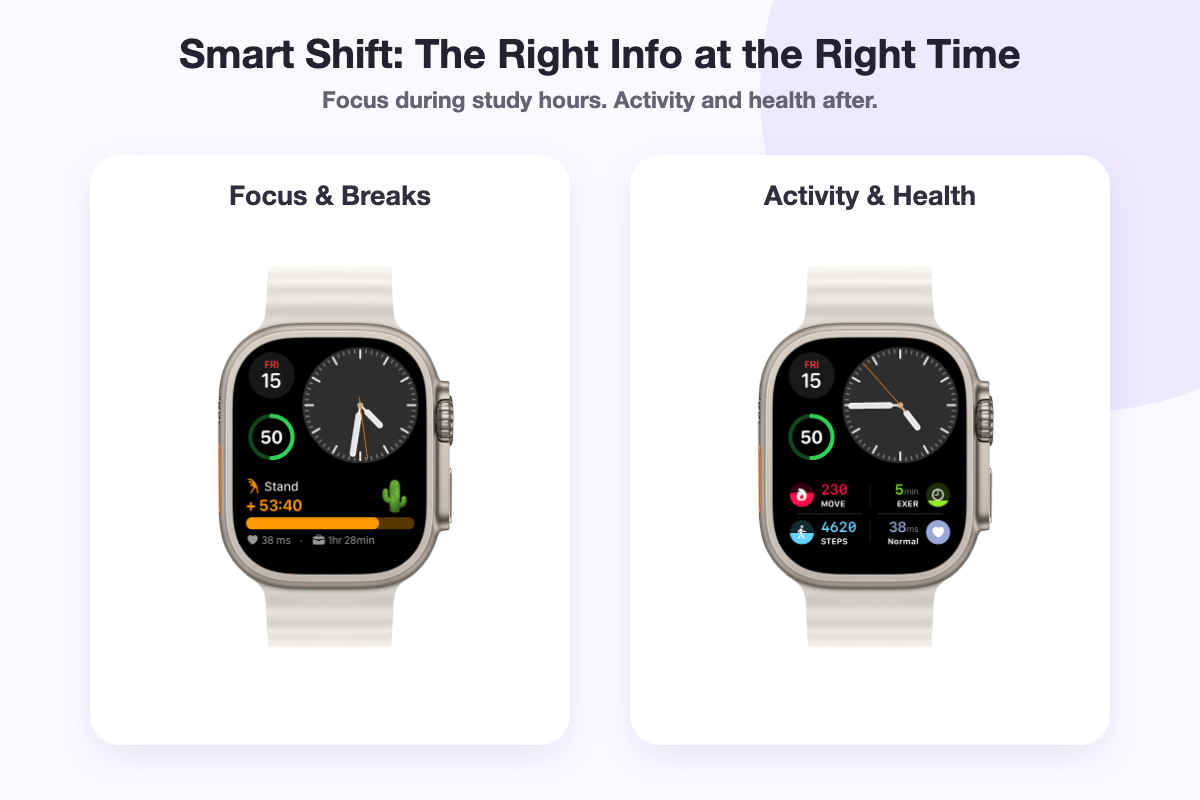
Study Focus controls which notifications may reach you. Timers control how long one session lasts. Smart Shift answers a different question: What information deserves the limited space on your wrist right now?
You can set Smart Shift work hours to match your main study schedule. During those hours, its Work Highlight can bring together:
- Current focus duration.
- A stretch or stand reminder after an extended focus period.
- A 5-minute break countdown.
- Time remaining until lunch or the end of your study block.
- HRV data and its interface status.
During lunch, after study hours, or on rest days, Smart Shift can switch to a Fitness Highlight that combines active calories, exercise minutes, steps, and HRV in one view.
The two Walbum features have different roles:
- Exam Goal watch face keeps your long-term target, dates, and time progress visible.
- Smart Shift changes the most relevant focus, break, weather, activity, or health information across the day.
They can work together, but they are not the same feature. Smart Shift's HRV labels are interface cues based on data, not medical conclusions. For every scene and setup step, read the Smart Shift Official Guide.
A practical Apple Watch study routine
You do not need to check your watch constantly. Configure it once, then let it help only at useful transition points:
| Time | How to use Apple Watch | Purpose |
|---|---|---|
| After waking | Review sleep trends, weather, and today's Calendar | Understand the day's condition and schedule |
| When study begins | Turn on Study Focus and switch to the study watch face | Silence unrelated notifications and create a clear start |
| At the start of a session | Start an Apple timer or Smart Shift focus timer | Set a boundary without opening the phone |
| After extended sitting | Stand, drink water, look into the distance, or walk briefly | Break up sitting and make the next session easier to begin |
| At lunch | Check activity once, then take a real break | Avoid filling every minute with study tasks |
| During evening review | Complete Reminders and choose tomorrow's top three to five tasks | Close the day's work and reduce bedtime planning |
| Before bed | Use Sleep Focus to reduce screens and notifications | Support a more consistent rest schedule |
If you keep changing the watch face, studying every metric, or chasing every ring, the tool is taking attention instead of protecting it. Remove the extra complications and keep only what you use.
A 10-minute Apple Watch study setup
Set things up in this order:
- Turn off unnecessary Apple Watch notifications.
- Create a Study Focus that allows only essential people and apps.
- Schedule it for your usual study hours.
- Add Timers, Reminders, or Calendar complications to a simple watch face.
- Put today's three to five most important tasks in Reminders.
- Set a realistic Sleep schedule and Activity goals if they help.
- Add the Exam Goal watch face if seeing the long-term target is motivating.
- Configure Smart Shift if you want focus, break, and health information to change automatically.
The order matters: reduce interruptions before adding more features.
What should you not delegate to Apple Watch?
- Do not use elapsed-time progress as a substitute for measuring what you have learned.
- Do not shorten sleep or disrupt study just to close an Activity ring.
- Do not judge your health from one HRV, heart-rate, or sleep reading.
- Do not create so many reminders that you start checking your wrist every few minutes.
- If you do not already own an Apple Watch, do not buy one solely because you expect it to improve your exam score.
The best study tool is not the one with the most features. It is the one that stays quiet in the background after setup.
Frequently asked questions about using Apple Watch for studying
Do students need an Apple Watch for studying?
No. Apple Watch can make notification control, timing, tasks, and activity easier to access, but a phone, paper planner, or basic timer can do the same core jobs. If you already own the watch, configure it to support study. You do not need one to become a better student.
Does Apple Watch have a built-in Pomodoro timer?
Apple Watch has a built-in Timers app, but no Apple system mode literally named “Pomodoro.” You can create separate study and break timers for 25/5 or 50/10 cycles. Smart Shift also includes focus and 5-minute break states.
Can Apple Watch automatically switch to a study watch face?
Yes. On iPhone, associate a watch face with a Study Focus and schedule that Focus. When it activates, Apple Watch can switch to the selected face along with the Focus notification rules.
What is the difference between Exam Goal and Smart Shift?
Exam Goal shows your long-term target, exam date, elapsed preparation time, and calendar progress. Smart Shift changes focus, break, weather, steps, activity, and HRV information according to time and context. One supports the long-term destination; the other supports today's rhythm.
Does low HRV mean I am stressed from studying?
Not necessarily. HRV varies between people and can change with sleep, exercise, illness, alcohol, recovery, and measurement timing. Compare it with your own longer-term pattern and do not use it to diagnose stress or illness.
What should I do if the Exam Goal watch face is black?
Confirm that Walbum is installed on Apple Watch, grant the required permissions, and refresh the face from the watch app. If a complication remains blank, open the Watch app on iPhone and configure Walbum's true native complication manually. See the full FAQ and true native watch-face tutorial.
Start with one setting that protects your attention
If you do only one thing today, create a Study Focus and turn off unnecessary notifications. Once that feels natural, decide whether Timers, task reminders, the Exam Goal watch face, or Smart Shift would solve a real problem.
Your tools should not make exam prep more complicated. The ideal setup becomes quiet when study begins, gives one gentle prompt when it is time to move or rest, and occasionally reminds you how far you have already come.
- View the Exam Goal watch face
- Download Walbum on the App Store
- Read the Smart Shift Official Guide
- Open installation and troubleshooting help
About the author: David is the independent developer of Walbum. Since 2019, Walbum has helped Apple Watch users discover and customize watch faces, complications, and widgets. This article is based on Apple documentation and the current behavior of the Exam Goal watch face and Smart Shift.